
Complete user guide covering all features, settings, payment gateways, and add-ons of Appointment Booking Calendar.
Try searching for a different keyword, check our FAQ page, or contact support.
From the WordPress administrator perspective, setting up a booking calendar takes three simple steps:
From the visitor / customer perspective, the booking flow works as follows:
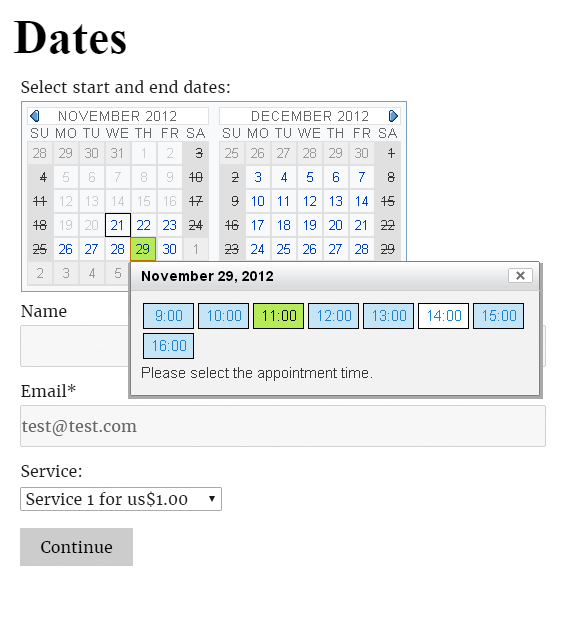
1. The visitor views the calendar on your page and clicks an available date. A panel displays the available time slots for that date so the visitor can select one or more slots.
2. After choosing the date and time slot(s), the visitor fills in the form fields (such as name, email, phone number, and comments) and clicks the submit button.
3. If online payments (e.g., PayPal, Stripe, Square, Mollie) are enabled: The customer completes the payment to confirm the booking. Once paid, the booking is automatically confirmed, the time-slot capacity is updated (and hidden if full), a notification email is sent to the administrator, and a confirmation email is sent to the customer.
4. If online payments are disabled: The customer is immediately redirected to your designated "Thank You" / confirmation page, and both notification and confirmation emails are sent right away.
5. You can review and manage all bookings from the WordPress administration area (Settings >> Appointment Booking Calendar) by clicking on booked dates in the calendar or opening the Bookings List, which includes one-click exports to CSV/Excel and iCal formats.
To install the Appointment Booking Calendar plugin in WordPress, follow these steps:
.zip package to your computer..zip file you downloaded in Step 1.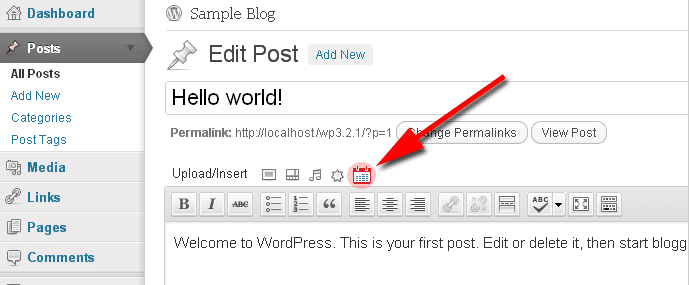
[CPABC_APPOINTMENT_CALENDAR calendar="1"] directly into any page, post, or builder block (replace 1 with your calendar's ID). When viewed on the frontend, the shortcode renders the interactive booking calendar and form:
Navigate to Settings >> Appointment Booking Calendar in your WordPress admin menu to view and manage your list of calendars:
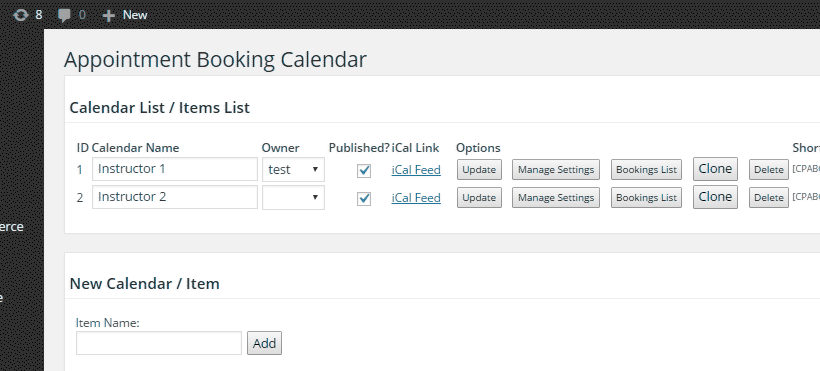
Each calendar row provides the following controls and information:
.ics) format for exporting bookings to external calendars such as Google Calendar, Outlook, or Apple Calendar.To configure your schedule and available time slots, go to Settings >> Appointment Booking Calendar >> Manage Settings. At the top of the settings page, you will see the interactive schedule configuration area:
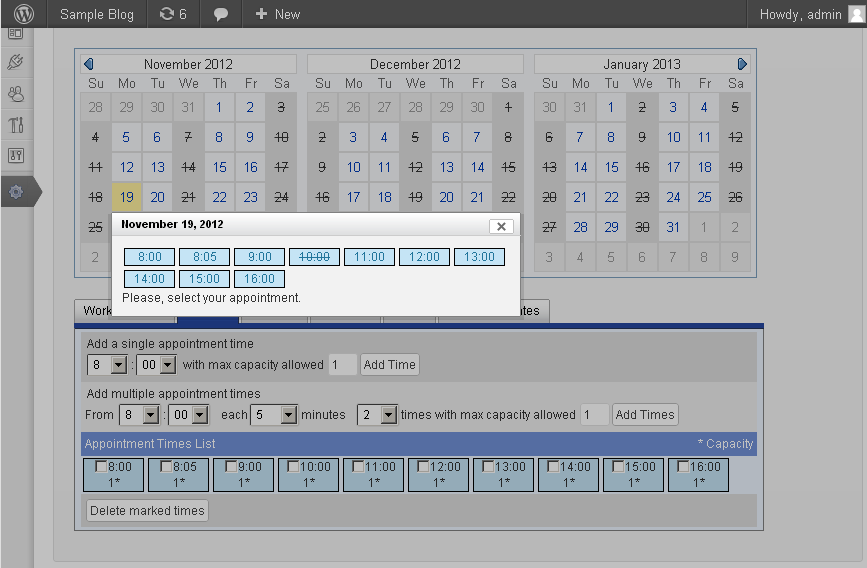
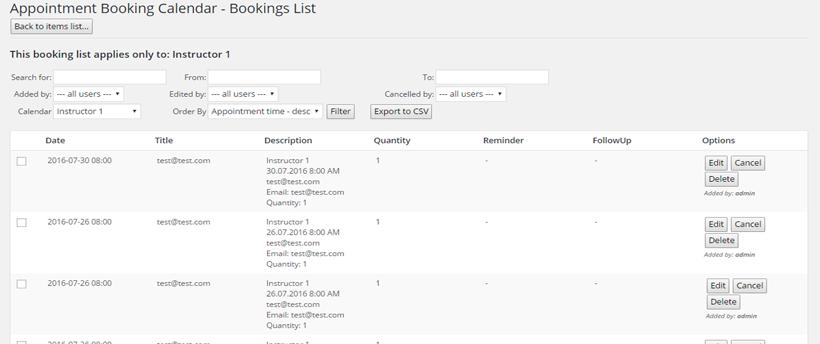
Click the "Bookings List" (or "Bookings / Contacts") button next to your calendar. The bookings screen displays all submitted appointments along with filter controls to search by calendar, date range, or keyword.
From this screen, you can delete individual or grouped bookings, toggle payment status between Paid / Unpaid, print the list, or export bookings to a CSV file.

To export your bookings to a CSV / Excel file, open the "Bookings List" for your calendar, apply any desired date or keyword filters, and click the "Export to CSV" button. The first row of the exported CSV file contains the column headers based on your form field labels.
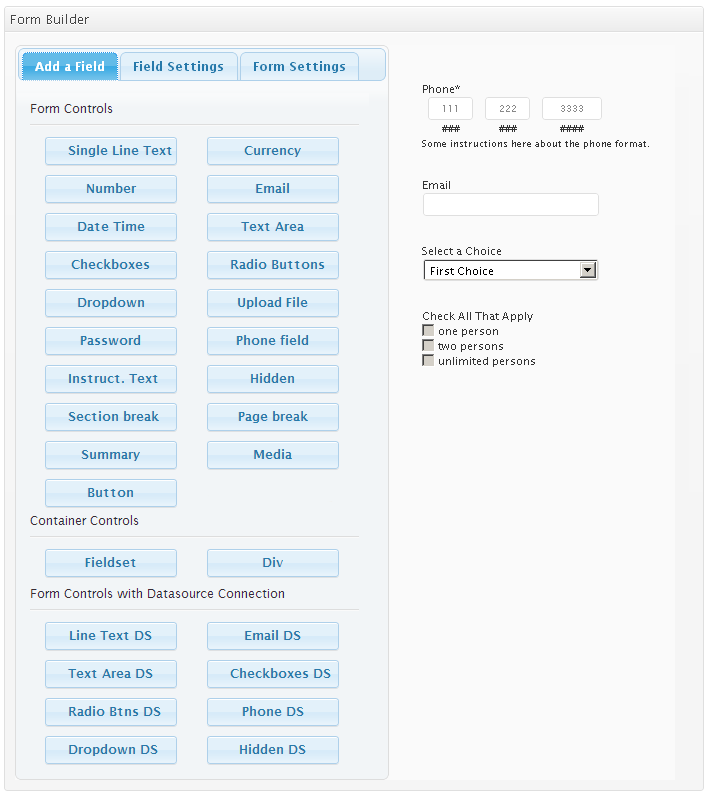
When the visual Form Builder is enabled (configured in the Troubleshoot Area & General Settings below the calendars list), each calendar's settings page includes a drag-and-drop visual form editor.
The Form Builder allows you to add, edit, reorder, and remove form fields, create multi-page forms, define conditional logic, and set validation rules (such as required fields, email verification, and file upload restrictions).
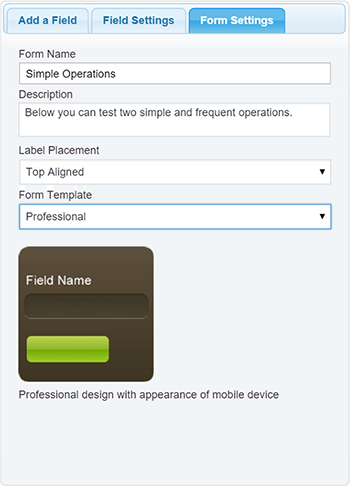
Click the "Form Settings" tab inside the Form Builder to customize your form's title, header description, label alignment (top, left, or right), and visual template. The Platinum edition includes multiple predefined CSS templates ready to apply with one click.
###-###-####).Container controls let you group multiple fields together for multi-column layouts or collective conditional logic:
<fieldset> with a title legend.<div> wrapper without adding visible borders.Included in the Platinum Edition (and legacy Developer licenses), Datasource controls dynamically populate their values or choices from external sources:
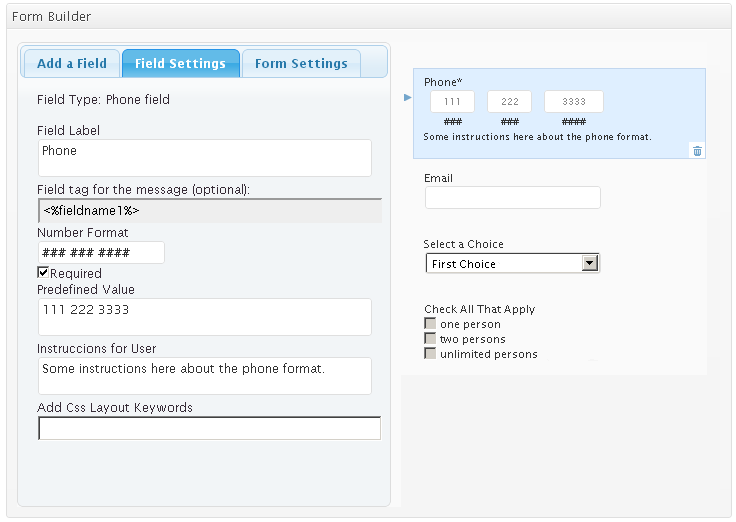
Click any field inside the Form Builder canvas to edit its properties in the left panel:
<%fieldname1%>) that you can copy and paste into email templates or confirmation pages to display that specific field's value.column2, column3, hide, or your own custom class) to customize the field's layout and styling.Follow these steps to configure a Datasource control (fields ending with DS):
wp_posts).WHERE condition to filter results (for example, post_status='publish').display_name ASC).For advanced queries, select "Custom Query" and enter a complete SQL query using AS value and AS text aliases:
SELECT column1 AS value, column2 AS text FROM tablename WHERE column3 > 5 ORDER BY column2 ASC LIMIT 5
You can also filter database queries dynamically using the value of another field on the form or a JavaScript variable inside the Condition field with the syntax <%varname%>—for example: ID=<%fieldname3%>.
For multi-choice DS fields (Drop-down DS, Radio Btns DS, Checkboxes DS), select "CSV" as the datasource and configure:
, or semicolon ;).Click "Import CSV" to load the file, then choose which columns to use in "Select column for texts" and "Select column for values".
Choice fields (Multiple Choice / Radio Buttons, Checkboxes, and Dropdown) can conditionally show or hide other fields depending on the option selected by the user.
For example, if your booking form has a radio button asking for the service type (In-Person Consultation vs. Home Visit), you can automatically display an "Address" field only when Home Visit is selected:
Each calendar includes a comprehensive configuration panel below the schedule editor:

* Click image to view full screenshot.
mm/dd/yyyy and dd/mm/yyyy, among other formats.2026-10-25) or a relative expression (e.g., today or today + 3 days).today + 60 days).EUR, USD, GBP, CAD).%INFORMATION% tag (or use individual field tags) to include the booking details.To enable a specific payment gateway, activate its corresponding add-on in the Add-ons area at the bottom of the main calendars list page (PayPal Standard and Stripe are built directly into the Platinum version and do not require activating a separate add-on).
The sections below explain how to configure each payment gateway available in the plugin.
PayPal Standard is built directly into the plugin. For complete details on configuring PayPal Standard, see the PayPal Payment Configuration section above.
The Stripe Payments integration allows you to accept all major credit and debit cards from customers worldwide directly on your website. An active SSL (HTTPS) certificate is required on your website to process transactions securely.
Stripe is built directly into the Platinum edition of the plugin. To activate it, select "Optional PayPal or Stripe.com" (or Stripe) in the "Enable PayPal Payments?" setting within your calendar configuration.
You will need the following credentials from your Stripe account:
When enabled, clicking the booking form submit button opens a secure Stripe checkout dialog where the customer enters their card details without leaving your website.
The Skrill Payments add-on provides a secure hosted checkout interface supporting credit/debit cards, over 20 local payment methods, and more than 80 direct bank transfer connections. For more information, visit https://www.skrill.com/en/merchants/.
To activate the add-on, go to Settings >> Appointment Booking Calendar, check the "Skrill Payment Integration" box in the Add-ons list, and click "Activate/Deactivate Addons".
Then configure the following settings in your calendar:
USD, EUR, GBP, CAD).When enabled, the customer is redirected to the Skrill hosted payment page after submitting the booking form, similar to PayPal Standard.
The TargetPay add-on provides integration with iDEAL, the most popular Dutch online banking payment method, via TargetPay (targetpay.com).
The iDEAL platform connects the online banking systems of the largest Dutch banks (ABN AMRO, ASN Bank, bunq, ING, Knab, Rabobank, RegioBank, SNS Bank, Triodos Bank, and Van Lanschot) into a single, trusted payment method.
To activate the add-on, go to Settings >> Appointment Booking Calendar, check "iDeal TargetPay", and click "Activate/Deactivate Addons".
Then configure the following fields in your calendar settings:
When enabled, the customer selects their bank and is redirected to the iDEAL-TargetPay payment environment upon submitting the booking form.
The Mollie add-on integrates your booking forms with iDEAL via Mollie, allowing customers to pay directly through the trusted online banking environment of major Dutch banks.
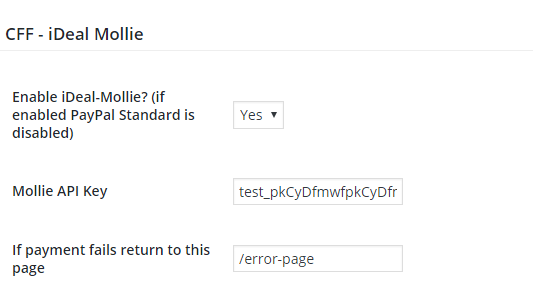
In the calendar settings area, provide the following details to link your Mollie account:
When enabled, customers are redirected to the Mollie iDEAL checkout screen after submitting the booking form.
The RedSys / Servired / Sermepa add-on provides a secure virtual POS (TPV) integration for accepting credit and debit card payments through major banks in Spain (Banco Sabadell, BBVA, Santander, CaixaBank, Bankinter, etc.). Learn more at www.redsys.es.
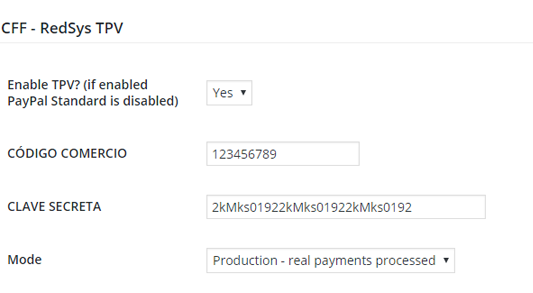
In the calendar settings area, enter the following details provided by RedSys or your bank:
When enabled, customers are redirected to the bank's RedSys TPV payment page upon submitting the booking form.
The SagePay add-on provides a secure interface for accepting online payments through SagePay (opayo.co.uk).
To activate the add-on, go to Settings >> Appointment Booking Calendar, check "SagePay", and click "Activate/Deactivate Addons".
Configure the following fields in your calendar settings:
When enabled, the customer is redirected to the SagePay payment form after submitting their booking.
The SagePayments add-on provides a secure SSL checkout integration for bankcard and virtual check transactions via Sage Payment Solutions >> Shopping Cart ExpressPay.
To activate the add-on, go to Settings >> Appointment Booking Calendar, check "SagePayments Payment Gateway", and click "Activate/Deactivate Addons".
Configure the following required settings in your calendar:
M_id provided by Sage Payment Solutions.You can also optionally map form field IDs (e.g., fieldname1, fieldname2) to pass customer name, address, phone, email, tax, and shipping details to the checkout form.
The Square Payments add-on lets you accept all major credit and debit cards directly on your website via Square. An active SSL (HTTPS) certificate is required on your site.
To activate the add-on, go to Settings >> Appointment Booking Calendar, check "Square", and click "Activate/Deactivate Addons".
In your calendar settings, enter your Square credentials from your Square Developer Dashboard:
USD, EUR, GBP).All included add-ons are listed in the "Add-ons area" at the bottom of the main Settings >> Appointment Booking Calendar page. To enable any add-on, simply check its box and click "Activate/Deactivate Addons".
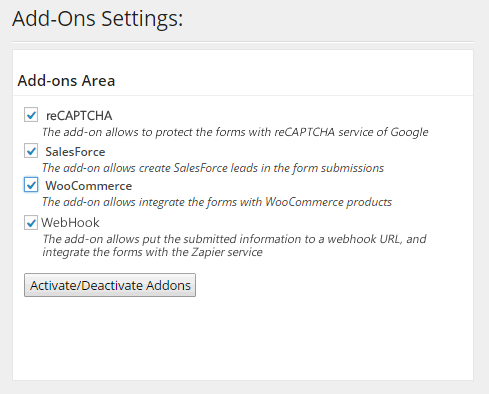
The built-in iCal Export feature allows you to automatically export your bookings to external calendar applications that support the iCal (.ics) format, including Google Calendar, Microsoft Outlook, and Apple iCloud Calendar.
No add-on activation is needed for exporting: simply go to Settings >> Appointment Booking Calendar, right-click the "iCal" link next to your calendar, and copy the link address.
For step-by-step instructions on subscribing to your iCal feed in Google Calendar, see this FAQ entry.
The iCal Automatic Import add-on automatically imports busy times and events from external iCal-compatible calendars (Google Calendar, Outlook, Apple Calendar, Airbnb/Booking feeds, etc.) into your Appointment Booking Calendar.
To activate the add-on, go to Settings >> Appointment Booking Calendar, check "iCal Automatic Import", and click "Activate/Deactivate Addons".
Then configure the following options in your calendar settings:
http:// or https:// URL of the remote .ics feed to import.The remote iCal feed is automatically imported every hour as well as whenever your calendar settings are saved.
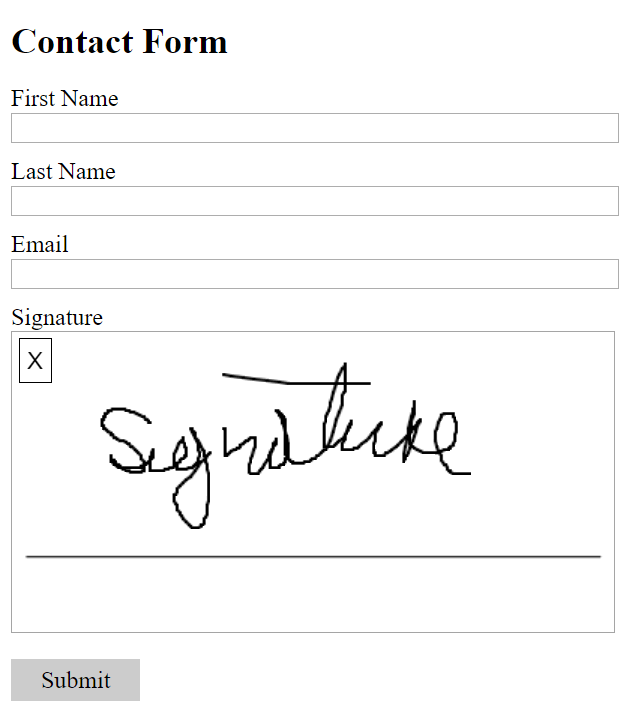
The Signature Add-on converts selected form fields into interactive digital signature pads, allowing customers to sign using a mouse, trackpad, or touchscreen.
To activate the add-on, go to Settings >> Appointment Booking Calendar, check "Signature", and click "Activate/Deactivate Addons".
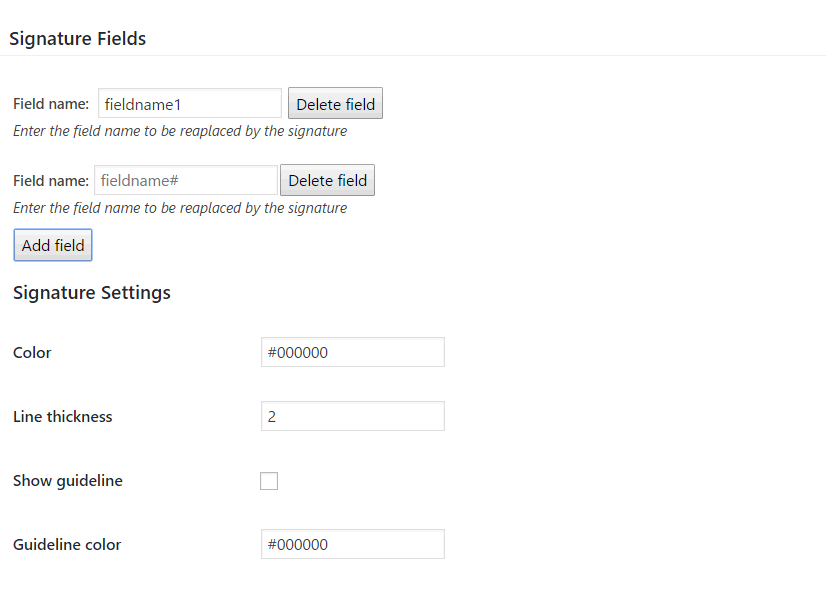
In the calendar's settings, choose which form fields to convert into signature pads and configure their appearance:
#000000).#000000).
The Mailchimp Add-on automatically adds customers who submit your booking form as subscribers to your Mailchimp audience lists.
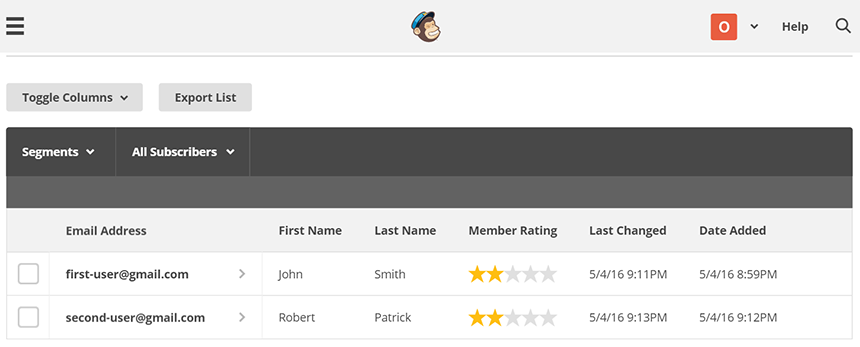
To activate the add-on, go to Settings >> Appointment Booking Calendar, check "MailChimp", and click "Activate/Deactivate Addons".
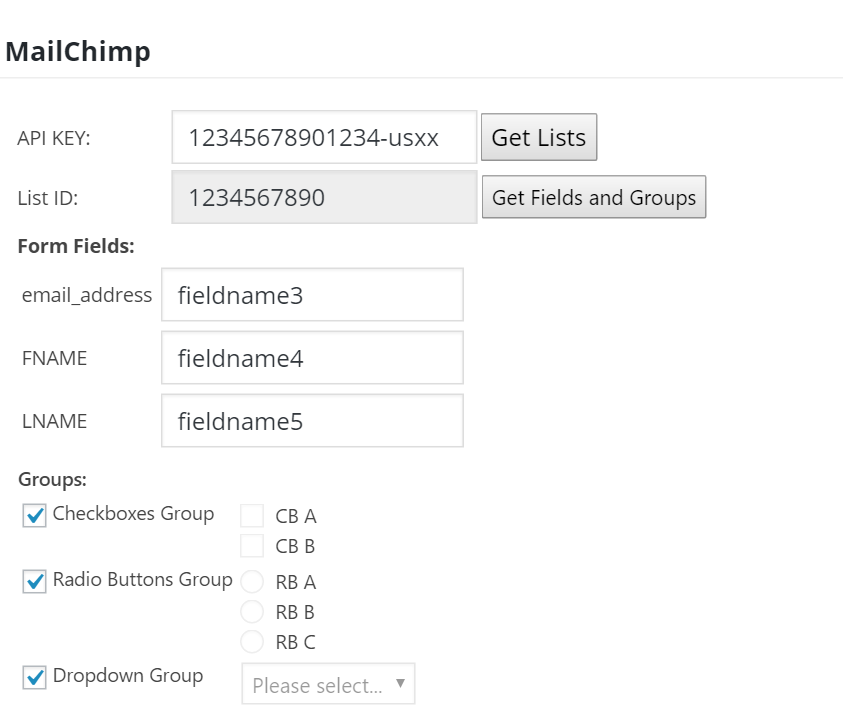
Once activated, open your calendar settings to map your booking form fields to your Mailchimp list:
The Twilio SMS Add-on integrates with Twilio so booking confirmations and appointment reminders can be sent via SMS text message to both administrators and customers.
Configure the following details in your calendar settings:
fieldname1—enter only the field ID without percent signs or brackets).Note: Standard single SMS messages are limited to 160 characters.
The Clickatell Add-on enables sending instant SMS notifications and appointment reminders to mobile phones worldwide.

To activate the add-on, go to Settings >> Appointment Booking Calendar, check "Clickatell", and click "Activate/Deactivate Addons".
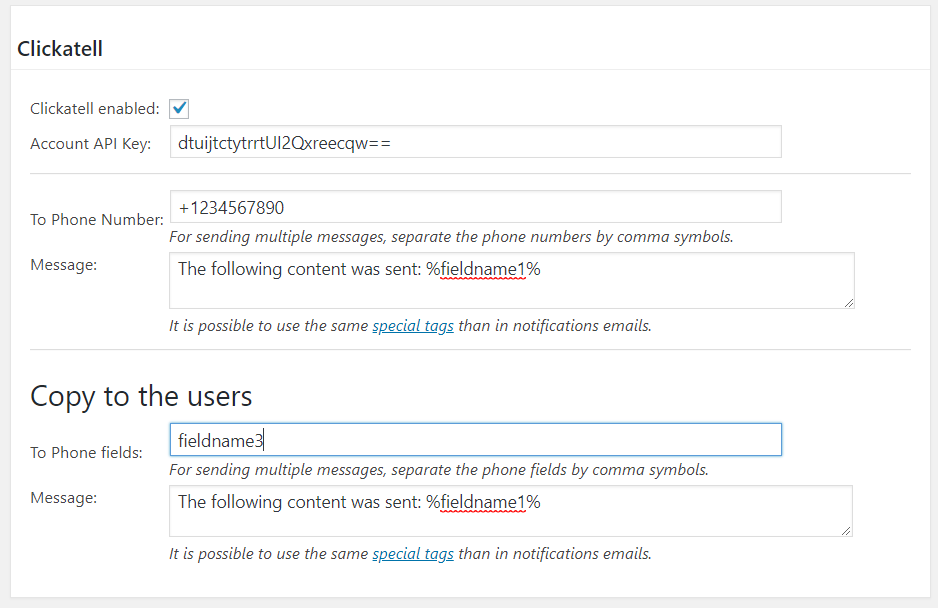
Configure the following settings in your calendar:
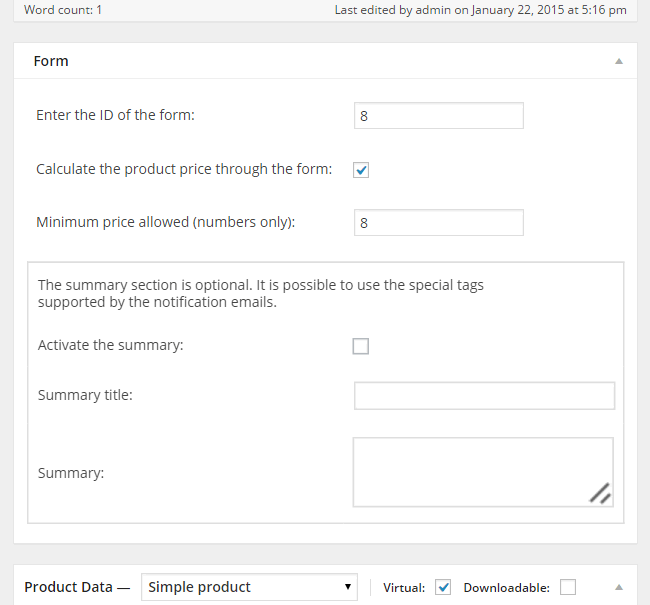
fieldname1, comma-separated) and customize the customer SMS message template.Included in the Platinum edition, the WooCommerce Add-on integrates your Appointment Booking Calendar forms directly with WooCommerce products so customers can book time slots, calculate dynamic prices, and check out through the WooCommerce cart and payment gateways.
Once activated, the add-on adds an Appointment Booking Calendar metabox to the WooCommerce product editor with the following settings:
Important: Make sure your WooCommerce product has a numeric value entered in its "Regular price" field (e.g., 0 or your base price); otherwise, WooCommerce hides the "Add to cart" button.
The Salesforce Add-on automatically creates new Leads in your Salesforce CRM account from submitted booking forms.
Ensure that Web-to-Lead is enabled in your Salesforce account, then configure the following in your calendar settings:
fieldname#).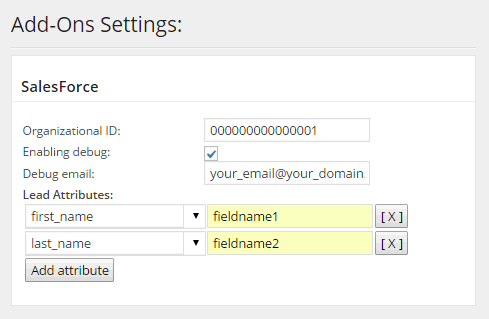
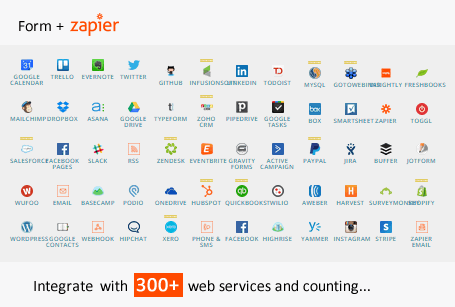
The WebHook Add-on posts submitted booking data to one or more external Webhook URLs via HTTP POST. Using WebHooks with integration platforms like Zapier, Make (Integromat), or Pabbly Connect lets you connect your booking forms to hundreds of web services—including Google Sheets, Google Drive, Dropbox, Zoho CRM, HubSpot, Slack, and document merge tools.
To use the add-on, simply paste your destination Webhook URL into the WebHook section of your calendar settings. Click "Add new URL" to trigger multiple webhooks from the same form.
Tip for Zapier: Select "Webhooks by Zapier" as the Trigger app and "Catch Hook" as the trigger event.
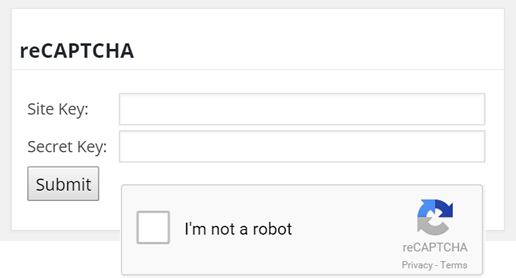
The reCAPTCHA Add-on protects your booking forms using Google reCAPTCHA in place of the traditional image captcha. With a single click, visitors confirm they are human without typing distorted characters.
To enable Google reCAPTCHA, go to Settings >> Appointment Booking Calendar, check "reCAPTCHA" in the Add-ons list, and click "Activate/Deactivate Addons". Then enter your Google reCAPTCHA Site Key and Secret Key in the settings section that appears.
The Zoom Meetings Integration Add-on connects your booking calendar with Zoom to automatically generate a Zoom video meeting for the booked time slot and include the meeting invitation link in your confirmation and notification emails.
You can then insert the following Zoom tags into your customer confirmation and admin notification emails:
%zoom%: The join invitation link for the generated Zoom meeting.%zoom_id%: The Zoom meeting ID.%zoom_password%: The Zoom meeting passcode.The Appointment Limits Add-on (included in the Platinum edition) lets you restrict the maximum number of appointments a single user can book per day, per week, and/or per month (for example: max 1 appointment per day, max 2 per week, and max 5 per month).
Limits can be enforced either by the customer's email address or by their logged-in WordPress user account:
The Summary Display Add-on (included in the Platinum edition) provides a shortcode to display a customized summary of the customer's submitted booking directly on your confirmation / "Thank You" page:
[CPABC_DISPLAY_SUMMARY calendar="1"]
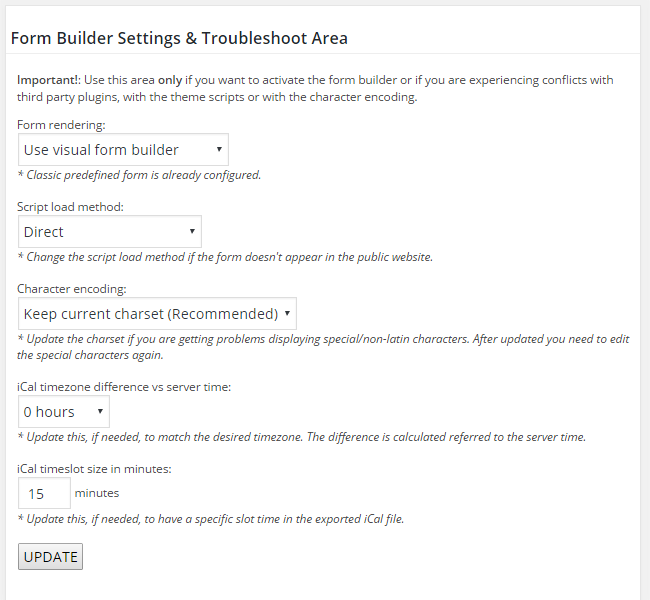
Located at the bottom of the main calendars list page, the "Troubleshoot Area & General Settings" section helps resolve script or encoding conflicts with third-party themes/plugins and configures global options:
The Platinum Edition supports double opt-in email validation in two steps:
Double opt-in validation helps prevent spam bookings and supports compliance with the European General Data Protection Regulation (GDPR). It can be enabled under the Troubleshoot Area & General Settings at the bottom of the main calendars list page:
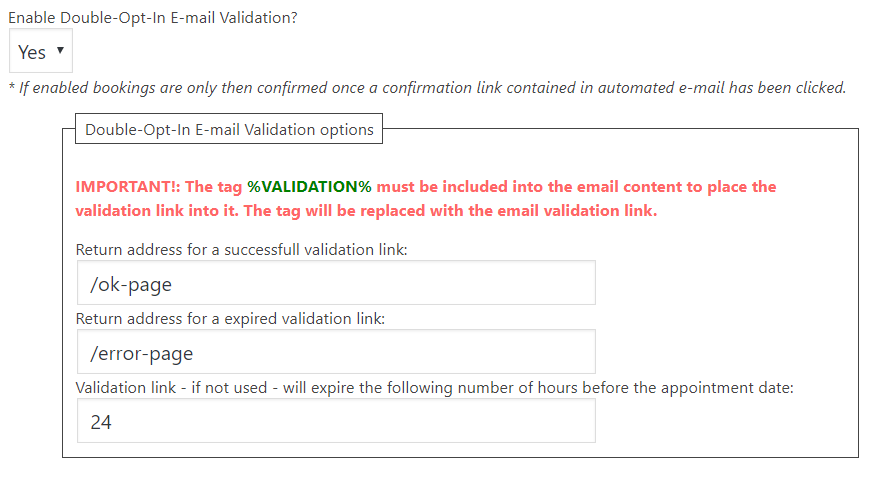
IMPORTANT: When Double Opt-In is enabled, you must include the tag %VALIDATION% inside the customer confirmation email content so the verification link is inserted into the email.
When enabled, a "Verified?" column appears in the Bookings List indicating whether each booking has been confirmed via the validation link.
To add a "Print" button that prints only the booking form (without the rest of the web page), follow these two steps in the visual Form Builder:
<script>
function printForm() {
	var w = window.open(null, 'Print_Page', 'scrollbars=yes');
	jQuery('#fbuilder input').each(function () {
		var e = jQuery(this);
		e.text(e.val()).attr('value', e.val());
		if (e.hasClass('large'))
			e.css('width', '100%');
		if (typeof e.prop('checked') != 'undefined')
			e.attr('CHECKED', e.prop('checked'));
	});
	var html = jQuery('#fbuilder').html();
	jQuery('#fbuilder TEXTAREA').each(function () {
		var e = jQuery(this).parent().html();
		html = html.replace(e, jQuery(this).val());
	});
	jQuery('#fbuilder SELECT').each(function () {
		var e = jQuery(this).parent().html();
		html = html.replace(e, jQuery(this).find('option:selected')[0].text);
	});
	w.document.write(html);
	w.document.close();
	w.print();
}
</script>
onclick event setting:
printForm();