
Find quick answers to common questions about installing, configuring, and customizing Appointment Booking Calendar.
User manual and detailed guide for every feature of the Appointment Booking Calendar.
Technical articles with practical tips and tricks for using the Appointment Booking Calendar.
Reach out to our support team if you can't find the answer in our documentation or FAQ.
We couldn't find any FAQ entries matching your search. Try a different keyword or contact our support team for assistance.
Installation Instructions:
.zip file, and click Install Now.Note: This is a completely safe process. Your existing calendars, bookings, and settings are stored in the database and will not be lost when removing the previous plugin files.
Alternative Installation Method (FTP):
/wp-content/plugins/ folder via FTP. This is also a safe process and preserves all existing data and settings.Upgrade Instructions:
Follow the same steps above to upgrade to the latest version. If you have made custom modifications directly to the plugin files or translation files, please create a backup first, as plugin files are overwritten during an update.
After upgrading the plugin, remember to clear your browser cache (and any WordPress caching plugin) so the updated scripts and styles load properly.
You can publish appointment booking forms on any WordPress page or post using the calendar block or shortcode. The shortcode can also be embedded directly into theme templates, and the Platinum version includes a dedicated WordPress widget for sidebars and widget areas.
Insert the "Page Break" control in the visual Form Builder wherever you want to split the form into a new page.
Each option in a Radio Button or Checkbox control consists of two inputs: one for the choice's value and one for its displayed text. To display an image, enter an HTML <img> tag with an absolute URL into the choice's text field:
<img src="https://yourwebsite.com/path/to/image.jpg" alt="Option" />
The Summary control uses two default CSS classes—cff-summary-title for field labels and cff-summary-value for field values. You can style all Summary controls across your forms by adding rules for these classes in your custom CSS:
.cff-summary-title { font-weight: bold; }
.cff-summary-value { color: #0066cc; }
If you want to style only a specific Summary control, select the Summary field in the Form Builder and enter custom class names into its "Classname for fields titles" and "Classname for fields values" attributes.
You can insert a hyperlink using an "Instruct. Text" field. Add an "Instruct. Text" control to your form and place a standard HTML anchor tag inside either the "Field Label" or "Instructions for User" setting:
<a href="https://wordpress.dwbooster.com" target="_blank">Visit the website</a>
Datasource controls (available in the Platinum edition, as well as legacy Developer licenses) let you dynamically populate form fields from external sources. Follow these steps:
wp_users or a custom table).post_status='publish').display_name ASC).For complex queries, select "Custom Query" and write the full SQL statement manually. Be sure to use AS value and AS text aliases in your SELECT clause:
SELECT column1 AS value, column2 AS text FROM tablename WHERE column3 > 5 ORDER BY column2 ASC LIMIT 5
To style elements across the entire form, add the desired CSS rules under "Customization area >> Add Custom Styles" (located at the bottom of the main calendars list page):
#fbuilder, #fbuilder label,
#fbuilder span { color: #00f; }
#fbuilder input[type=text],
#fbuilder textarea,
#fbuilder select {
    border: 2px solid #00f;
}
#fbuilder .pbSubmit { color: #00f; font-weight: bold; }
#fbuilder .section_breaks .section_break { border: 0px; }
#fbuilder .section_breaks label { font-size: 18px; }
#fbuilder .section_breaks span { font-size: 14px; }
#fbuilder .comment_area label { font-size: 18px; }
#fbuilder .comment_area span { font-size: 14px; }
#fbuilder .pbNext, #fbuilder .pbPrevious { color: #00f; font-weight: bold; }
#fbuilder .fform h1 { font-size: 32px; }
#fbuilder .fform span { font-size: 16px; }
#fbuilder label .r { color: #f00; }
.uh_phone .l { display: none; }
#fbuilder .dformat { display: none; }
To style a single specific field in the form:
specialclass). Do not enter CSS properties directly into this box—only the class name..specialclass label { color: #00f; }
.specialclass input[type=text],
.specialclass textarea,
.specialclass select { border: 2px solid #00f; }
To center the calendar, add the following CSS rules under "Customization area >> Add Custom Styles" (at the bottom of the page containing the list of calendars):
.appContainer { text-align: center; }
.appContainer2 { margin-left: auto; margin-right: auto; width: 200px; }
After saving, refresh the page and clear your browser cache so the updated CSS styles take effect.
You can control the overall calendar dimensions by adjusting the padding of the calendar cells. Add the following rule under "Customization area >> Add Custom Styles":
#cp_tslotsbooking_pform_abc .yui-calendar td.calcell,
#cp_abcform_pform .yui-calendar td.calcell {
    padding-top: 10px;
    padding-bottom: 10px;
    border: 1px solid #E0E0E0;
    text-align: center;
    vertical-align: top;
}
Adjust the padding-top and padding-bottom values (or add horizontal padding) to achieve your desired calendar size.
Add the following CSS rule into "Customization area >> Add Custom Styles" (or edit wp-content/plugins/appointment-booking-calendar/TDE_AppCalendar/all-css.css) and replace the hex color code with your preferred color:
.yui-calendar td.calcell.reserveddate { background-color: #B6EA59 !important; }
Add the following CSS rules under "Customization area >> Add Custom Styles" (at the bottom of the calendars list page) and customize the color codes as needed:
/* Selected time slot */
.cellReserved {
    color: #f00;
    background: #ff0;
}

/* Available time slot */
.cell {
    color: #000;
    background: #afa;
}
Add this style rule under "Customization area >> Add Custom Styles" and replace the color value with your preferred hex code:
#listcal1 {
    color: #013F34 !important;
}
Add the following CSS rules under "Customization area >> Add Custom Styles" (at the bottom of the calendars list page):
#cp_tslotsbooking_pform_abc .yui-calendar td.calcell,
#cp_abcform_pform .yui-calendar td.calcell {
    border: 1px solid #E0E0E0;
    text-align: center;
    vertical-align: top;
}
#cp_tslotsbooking_pform_abc .yui-calendar .calheader,
#cp_abcform_pform .yui-calendar .calheader {
    width: 100%;
}
#cp_tslotsbooking_pform_abc .yui-calendar,
#cp_abcform_pform .yui-calendar {
    width: 100%;
    table-layout: fixed;
}
Class names are assigned to fields via the "Add CSS Layout Keywords" setting in the Form Builder. To assign multiple classes to the same field, simply separate each class name with a space—for example: myclass1 myclass2.
Browsers such as Chrome, Safari, Edge, and Firefox display up/down spinner arrows inside input[type="number"] fields by default. To hide them, paste the following CSS into "Customization area >> Add Custom Styles":
input[type=number]::-webkit-inner-spin-button,
input[type=number]::-webkit-outer-spin-button {
    -webkit-appearance: none;
    margin: 0;
}
input[type=number] {
    -moz-appearance: textfield;
}
In the Form Builder, click a field and locate its "Add CSS Layout Keywords" setting. You can use the following built-in CSS classes to align 2, 3, or 4 consecutive fields on the same row:
column2 (2 fields per row)column3 (3 fields per row)column4 (4 fields per row)For example, to place two fields side by side on the same line, enter column2 into the "Add CSS Layout Keywords" box for both fields.
Alternatively, you can insert a container control (DIV or FIELDSET) and select the desired number of columns in its "Columns" attribute. All fields placed inside that container will automatically be arranged in columns.
Need 6, 8, or more columns? You can nest container controls. For example, to create 6 columns, insert two DIV containers with the class column2, and place three fields inside each container with the class column3.
In the latest version of the plugin, simply enter the built-in class name hide into the field's "Add CSS Layout Keywords" setting.
Alternatively, you can assign your own custom class name (e.g., myclass) in "Add CSS Layout Keywords" and define it in "Customization area >> Add Custom Styles":
.myclass { display: none; }
In the visual Form Builder, click the "Form Settings" tab. From there, you can edit or clear the form title and header description, as well as choose the alignment for field labels.
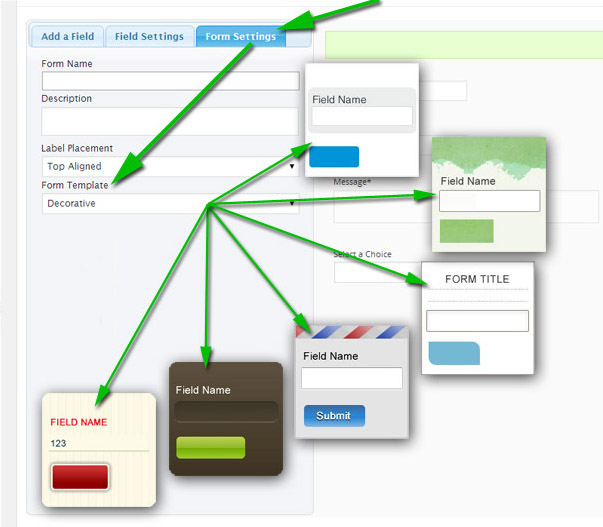
Yes. The plugin includes several predefined templates that can be applied to your forms: Default, Letter, Professional, Natural, Elegant, Decorative, and Clean Design.
Each template is stored in its own subdirectory inside /wp-content/plugins/appointment-booking-calendar/templates/ and is styled by a style.css file:
templates/01/templates/02/templates/03/templates/04/templates/05/templates/06/Tip: Rather than editing the template files directly (which may be overwritten when updating the plugin), we recommend placing your CSS overrides in "Customization area >> Add Custom Styles".
Yes. To hide the ### ### #### format hint, add this CSS rule under "Customization area >> Add Custom Styles":
.uh_phone .l { display: none; }
Yes. In addition to editing the email text, you can use the following dynamic tags in your email messages:
%ITEMNUMBER%: Booking / Request ID.%CALENDAR%: Title of the calendar associated with the appointment.%DATE%: Selected appointment date.%TIME%: Selected appointment time.%ALLDATES%: All selected dates and times (when multiple time slots are booked at once).%COUPONCODE%: Coupon code entered by the user, if any.%payment_type%: Selected payment option (e.g., PayPal or Pay Later).%txnid%: Payment transaction ID.%SERVICES%: Selected option from the Services / custom settings field.%PRICE%: Total price/cost of the booking.%QUANTITY%, %ADULTS%, %JUNIORS%: Selected values when quantity fields are enabled.%EMAIL%, %PHONE%, %COMMENTS%, %NAME%: Field values when the visual Form Builder is disabled.%email%, %subject%, %message%, %fieldname1%, %fieldname2%, ...: Field values when the visual Form Builder is enabled.By default, the <%INFORMATION%> tag outputs all submitted form fields. However, you can also insert individual field tags to customize the exact layout of your email:
%ITEMNUMBER%: Booking / Request ID.%CALENDAR%: Calendar related to the appointment.%DATE%: Selected date for the appointment.%TIME%: Selected time for the appointment.%ALLDATES%: All selected dates and times (if more than one time slot is selected).%COUPONCODE%: Coupon code entered, if any.%payment_type%: Selected payment option.%SERVICES%: Additional services / custom settings field.%PRICE%: Total booking cost, if any.%QUANTITY%, %ADULTS%, %JUNIORS%: Selected values if quantity fields are enabled.%EMAIL%, %PHONE%, %COMMENTS%, %NAME%: Values entered when the visual Form Builder is disabled.%email%, %subject%, %message%, %fieldname1%, %fieldname2%, ...: Values entered when the visual Form Builder is enabled.Yes. Place the tag %ITEMNUMBER% inside the email content, and it will be replaced with the unique booking / PayPal item number.
Uploaded files are attached to notification emails automatically, and you can also include a direct download link inside the email body.
In the Form Builder, click your file upload field and check the read-only setting labeled "Field tag for the message (optional)"—for example, <%fieldname7%>. To output the file's URL in your email, append _url to the field name: <%fieldname7_url%>.
To include an image (such as a company logo or header banner) in your emails, select HTML email format and insert an HTML <img> tag with a full, absolute URL in the "Email notification to admin" and/or "Email confirmation to user" settings:
<img src="https://yourwebsite.com/path/to/logo.png" alt="Logo" />
When using HTML format for notification emails, use standard HTML line-break tags wherever you want a new line:
<br />
To hide the cost display completely, add this rule under "Customization area >> Add Custom Styles":
#abccost { display: none; }
To customize its appearance (for example, changing the text color and font size), add a rule like this instead:
#abccost { color: #ff0000; font-size: 16px; }
To display the remaining available capacity on each time slot, add the following CSS rule under "Customization area >> Add Custom Styles" (at the bottom of the calendars list page):
.cpabc_capacity { display: block !important; }
Follow these steps to connect an Appointment Booking Calendar form to a WooCommerce product:
0 or your base price); otherwise, WooCommerce will not render the "Add to cart" button on the public product page.The Appointment Booking Calendar metabox on the WooCommerce product edit page includes a section to configure the booking summary displayed in the shopping cart.
Simply enable the summary option, enter a title, and define the summary content using any of the special field tags supported in notification emails and confirmation pages.
The WebHook Add-on (included in the Platinum edition) lets you connect your booking forms with Zapier to automate tasks across hundreds of external apps.
To automatically send files uploaded through your booking form to Dropbox:
Using the WebHook Add-on (included in the Platinum edition) together with Zapier and a document-generation service such as Formstack Documents (formerly WebMerge), you can populate a PDF, Word, Excel, or PowerPoint template with submitted booking data and automatically email it to the customer:
Yes, you can connect a file upload field that allows multiple file selections to external services like Dropbox or Google Drive via the WebHook Add-on and Zapier.
For each file upload field (e.g., fieldname1), the plugin passes a webhook variable named fieldname1_urls containing a comma-separated list of all uploaded file URLs. Selecting this variable in Zapier allows the action app to process all uploaded files.
If the calendar or booking form does not render on the public page (or if only the captcha image appears), change the "Script load method" setting to "Direct". This resolves theme and script-loading conflicts in almost all cases.
You can find this option in the "Troubleshoot Area & General Settings" section located at the bottom of the main calendars list page.
First, check whether the appointment appears in the plugin's Bookings List (or if the time slot is marked as booked in the calendar) after completing the booking/payment:
localhost) or password-protected staging sites cannot receive external IPN callbacks from PayPal.In the "Troubleshoot Area & General Settings" (located below the list of calendars on the plugin settings page), change the "Script load method" from "Classic" to "Direct" and save your changes.
Use the "Troubleshoot Area & General Settings" at the bottom of the calendars list page to update the character encoding to UTF-8. If you prefer to adjust it manually via phpMyAdmin, set the collation/encoding of the wp_cpabc_appointment_calendars database table to utf8_general_ci (or utf8mb4_unicode_ci), then re-save your form text.
The free version (or any previously installed version of the plugin) must be deactivated and deleted from the WordPress Plugins page before uploading the new version.
This is a completely safe step—your calendars, bookings, and settings are stored in the WordPress database and will not be lost when removing the old plugin folder.
Alternatively, you can upload and overwrite the plugin files via FTP.
Yes, both plugins are compatible. If you use Autoptimize, we recommend configuring the following settings:
jquery.js,jquery.validate.js to the "Exclude scripts from Autoptimize" field.Yes, both plugins are compatible. However, if the "Load JavaScript deferred" option is enabled in WP Rocket, it may delay inline scripts needed to render the calendar.
To prevent any conflict, either disable "Load JavaScript deferred" for the booking page or exclude the page containing the booking form from WP Rocket caching/JS optimization.
For details on excluding specific pages in WP Rocket, see:
https://docs.wp-rocket.me/article/54-exclude-pages-from-the-cache
The Platinum Edition (and legacy Developer version) includes an optional feature that automatically converts available time slots to the visitor's local time zone. It can be enabled in the calendar settings as shown below:
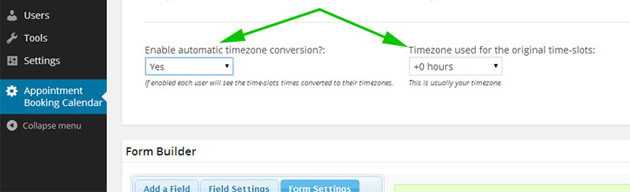
You can test this feature from a device in another time zone or by temporarily changing the time zone on your computer.
Note: If you change your computer's time zone while testing in Chrome or Safari, be sure to completely restart the browser so it detects the updated system time zone.
The following shortcodes are available in the Platinum Edition (and legacy Developer version) for showing a logged-in user's bookings and a read-only availability calendar:
[CPABC_APPOINTMENT_CALENDAR_CURRENT_USER_BOOKINGS]: Displays bookings belonging to the currently logged-in WordPress user. Supports the same parameters used for the appointment list shortcode.[CPABC_APPOINTMENT_CALENDAR_READ_ONLY]: Displays a read-only calendar showing available and booked dates/slots without a booking form. Supports the same parameters as the main booking calendar shortcode (e.g., calendar="1").In the Platinum Edition (and legacy Developer version), confirmation emails can automatically include an iCal (.ics) attachment so customers and admins can add the appointment directly to Google Calendar, Outlook, or Apple Calendar with one click.
To enable this option, open your calendar settings, scroll to the "iCal file for emails" section (between "Reminder Settings" and "Custom Settings"), check "Send iCal file via email?", and enter a subject format in the "iCal subject line" field, such as:
Appointment - <%name%>
The subject and description fields can be customized using any field tag from the Form Builder.
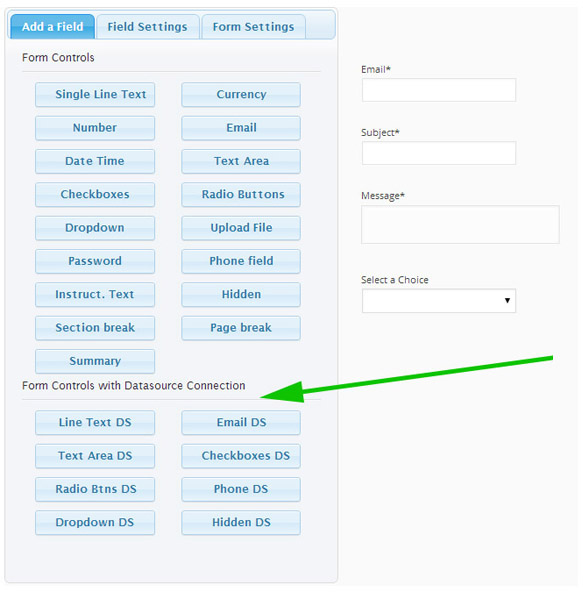
The Form Builder in the Platinum Edition (and legacy Developer version) includes dynamic Datasource (DS) controls that load their values or choices from external sources:
The Platinum Edition (and legacy Developer version) includes multiple pre-built CSS templates that can be selected in the Form Builder's Form Settings tab:
The following additional field types are available in the Platinum Edition (and legacy Developer version):
<fieldset> container with an optional legend.<div> container—ideal for multi-column layouts, conditional visibility blocks, and custom styling.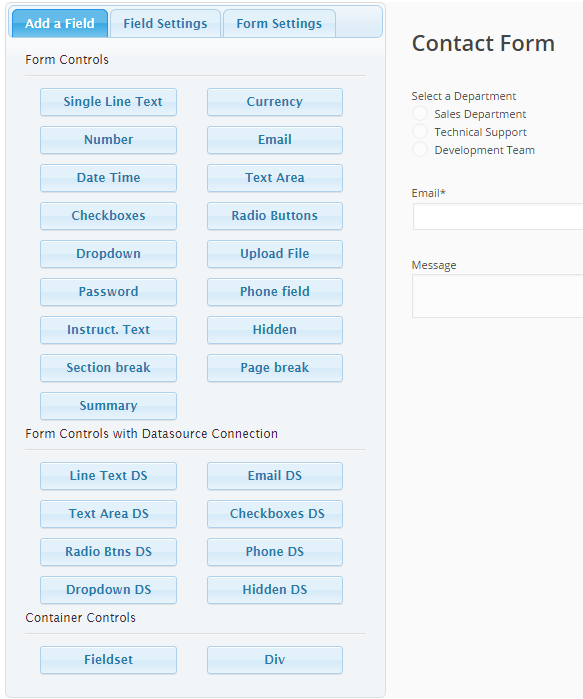
The Platinum Edition includes an optional feature that automatically creates and assigns a personal booking calendar whenever a new WordPress user is registered, cloning the configuration of a designated template calendar.
The Platinum Edition allows you to share time-slot availability across multiple calendars.
With this option enabled, one calendar acts as the availability source, and whenever a time slot is booked in any calendar within the shared group, that slot is automatically marked as booked across all linked calendars. This is ideal when you offer different services or forms that draw from the same room, resource, or staff schedule.
The Platinum Edition lets you include self-service cancellation links in customer confirmation emails with customizable rules:
%CANCEL% in your email content to output a cancellation link for the entire booking.%ALL_CANCEL_LINKS% to output individual cancellation links for each booked time slot (when multiple slots are booked together).You can configure the following cancellation settings directly in the admin area:
24 to disallow cancellations within 24 hours of the appointment).In addition to the standard iCal export feed, the Platinum Edition includes the iCal Automatic Import Add-on to automatically import busy times and bookings from external calendars that support the iCal (.ics) format—such as Google Calendar, Outlook Calendar, and Apple iCloud Calendar.
Combining the iCal export link from your calendars list with the iCal Automatic Import add-on gives you full two-way calendar synchronization.
The Platinum Edition supports double opt-in email validation in two simple steps:
Double opt-in validation helps prevent fake bookings and assists with GDPR compliance. It can be enabled under the Troubleshoot Area & General Settings at the bottom of the main calendars list page. Read more in the Double Opt-In Email Validation documentation.
The Platinum Edition provides shortcodes that allow customers to look up and manage their booked appointments on the frontend:
1. For logged-in WordPress users:
If the customer was logged in to their WordPress account when submitting the appointment, use:
[CPABC_APPOINTMENT_CALENDAR_CURRENT_USER_BOOKINGS]
This shortcode accepts all parameters from [CPABC_APPOINTMENT_LIST] (see the list shortcodes FAQ) plus the displaycancel="true" attribute to display a cancellation link next to eligible bookings:
[CPABC_APPOINTMENT_CALENDAR_CURRENT_USER_BOOKINGS displaycancel="true"]
2. For guests without a WordPress account:
If your customers book without logging in to WordPress, use the following shortcode to display a lookup form where they can view, cancel, or reschedule their appointments:
[CPABC_APPOINTMENT_MYAPPS calendar="1" fields="DATE,TIME,fieldname1" emailfield="email" namefield="fieldname1"]
Adjust calendar="1" to match your calendar ID, and update the field identifiers (such as fieldname1) to match the field IDs in your form. Customers will be prompted to enter their email address and name (or phone number) to access their bookings.
The Platinum Edition includes a shortcode that lets authorized users edit their calendar settings directly from the frontend without needing access to the WordPress admin dashboard:
[CPABC_EDIT_CALENDAR]
[CPABC_EDIT_CALENDAR calendar="1"]
[CPABC_EDIT_CALENDAR fullsettings="1"]
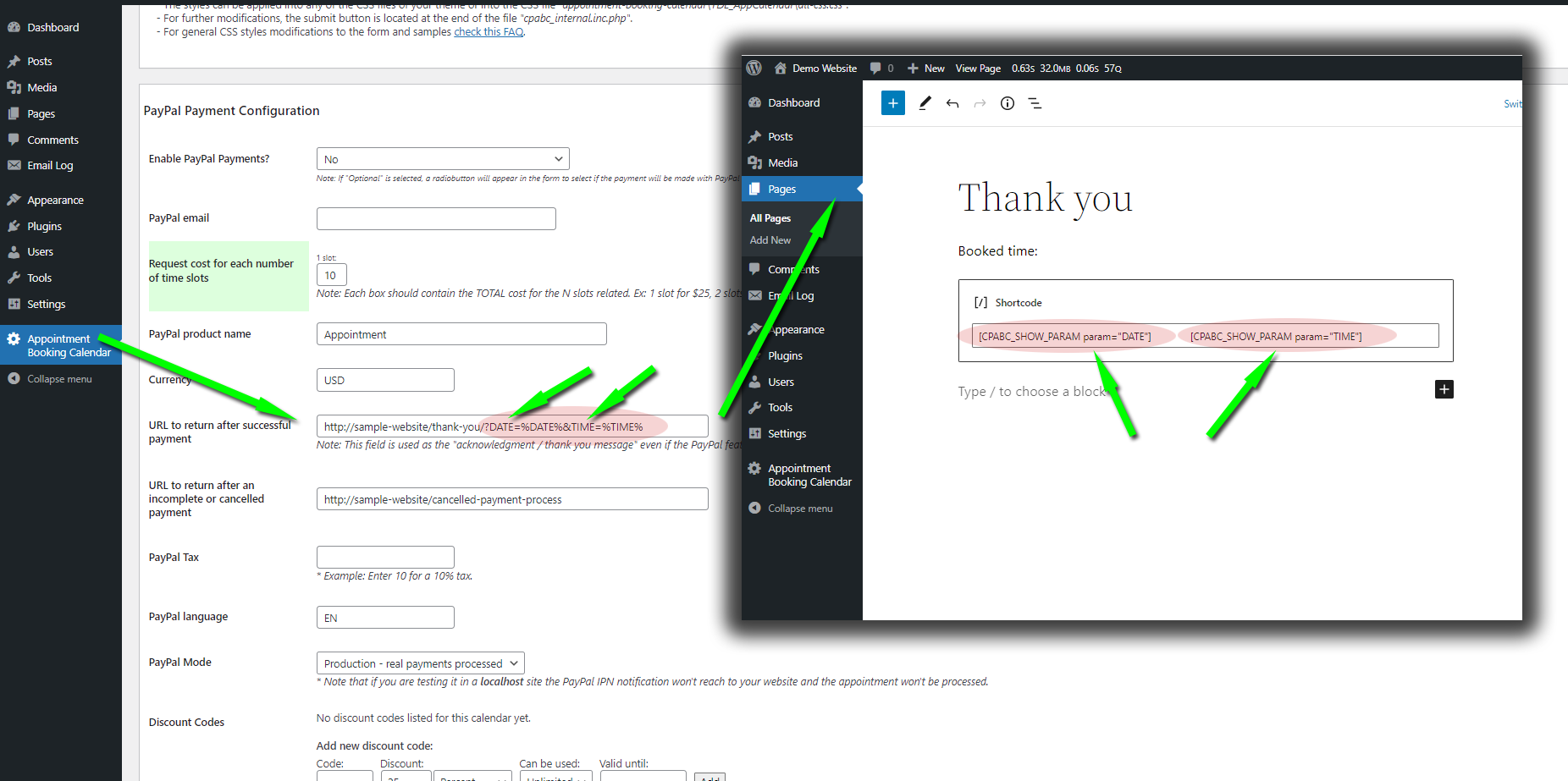
The Platinum Edition allows you to display the submitted appointment details directly on the confirmation page (the URL specified in the "URL to return after successful payment" setting, which is used after form submission even when online payments are disabled).
See the screenshot below for setup instructions (click to enlarge):
To export your Appointment Booking Calendar schedule to Google Calendar automatically:
To also import events from Google Calendar (or Outlook/Apple Calendar) back into the plugin for full two-way synchronization, enable the iCal Automatic Import Add-on included in the Platinum Edition.
For a step-by-step walkthrough, read our blog guide: Adding appointments to Google Calendar, iPhone/iPad, and Outlook.
A reminder configured for "X hours BEFORE the booking" is triggered approximately X hours prior to the start of the booking date (referenced from midnight, 00:00, using your server time).
Because WordPress triggers scheduled tasks when pages are visited, websites with very low traffic may optionally set up an hourly server cron job to ping the site's homepage so reminders are always dispatched right on time.
Yes. Place your acknowledgment or thank-you message on the WordPress page whose address is entered in the calendar's "URL to return after successful payment" field. Customers are redirected to that URL immediately after submitting the booking form, even if PayPal or other payment gateways are disabled.
You can delete an appointment either from the Bookings List button next to your calendar, or by selecting the booked date in the admin calendar view, clicking the button to clear the title, and saving. Once deleted, the time slot immediately becomes available again.
If you only accept one appointment per day—while still allowing the customer to choose from several available time slots on that day—you can automatically block the remaining slots on a date once the first booking is made:
Yes. You can display a list of appointments on any page or post using the following shortcode:
[CPABC_APPOINTMENT_LIST]
You can customize the list using optional attributes:
[CPABC_APPOINTMENT_LIST from="today" to="today +30 days" fields="DATE,TIME,NAME" calendar="1"]
from and to: Filter appointments within a date range (using relative values like "today" and "today +30 days", or fixed dates).group="yes": Combines multiple bookings made for the same time slot into a single grouped row:
[CPABC_APPOINTMENT_LIST group="yes"]
fields: Comma-separated list of columns to display (e.g., CALENDAR,DATE,TIME,NAME,PHONE,COMMENTS or custom form field IDs).The list elements can be styled using the CSS classes .cpabc_field_0, .cpabc_field_1, .cpabc_field_2, etc.
Additional Shortcodes & Filters in the Platinum Edition:
orderby: Sort the list order—for example: [CPABC_APPOINTMENT_LIST orderby="datatime ASC"]query: Filter bookings by keyword—for example: [CPABC_APPOINTMENT_LIST query="search keyword"]displayslots="yes": Include unbooked (available) time slots in the list—for example: [CPABC_APPOINTMENT_LIST displayslots="yes"][CPABC_APPOINTMENT_CALENDAR_CURRENT_USER_BOOKINGS]: Displays bookings made by the currently logged-in WordPress user (add displaycancel="true" to include cancellation links).[CPABC_APPOINTMENT_CALENDAR_MY_CAL_BOOKINGS]: Displays bookings for the calendar assigned to the currently logged-in WordPress user.[CPABC_APPOINTMENT_LIST_QUERY]: Displays the appointments list with an interactive search filter bar at the top.Yes.In addition to placing multiple individual calendar shortcodes on a page, you can display a single calendar view with a drop-down selector at the top by assigning those calendars to the same WordPress user (for example, admin) and using:
[CPABC_APPOINTMENT_CALENDAR user="admin"]
This renders a drop-down menu above the calendar allowing visitors to switch between all calendars assigned to that user.